
Introduction
Last week I encountered a strange problem with one of my customers. Luckily there was a quick fix for the solution!
The issue was the customer got the error “Unable to find user in Active Directory” during Windows AutoPilot enrollment using Workspace ONE UEM as MDM.
It’s good to know that in Entra AD Connect, the sourceAnchor attribute connects an on-premises user object to Entra AD user object. It ensures that a hybrid object has the same identity both on-premises and in Azure.
This value can either be the “ms-DS-ConsistencyGuid” or “ObjectGUID”, depending on what’s configured in the Entra AD Connect server “Source Anchor” settings. In Workspace ONE UEM this value is referred to as “Immutable ID Mapping Attribute”.
Troubleshooting
At first, we opened the Entra AD Connect settings, to see what value was configured as Source Anchor. In this case, it was “ms-DS-ConsistencyGuid”.

This matched what was configured in Workspace ONE UEM in the Azure/Entra AD integration settings.
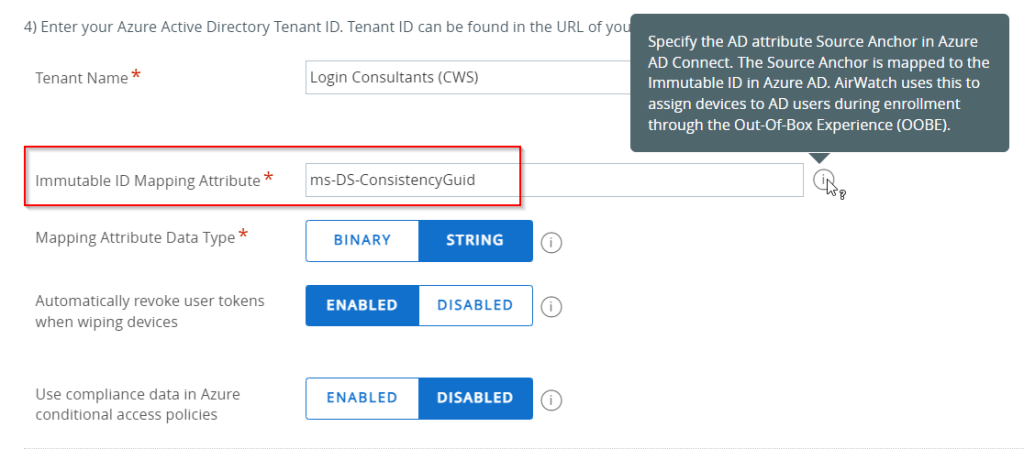
So, this all was correctly configured. Now we wanted to see if this Immutable ID value for a test user is actually matching. At first, we checked Entra ID. You can see the Immutable ID value if you manage the view for the Entra ID users and add “On-premises immutable ID”.



This value can easily be converted to a GUID by using the following PowerShell command line:
[Guid]([Convert]::FromBase64String(“<On-premises immutable ID value in Entra ID>“))

Okay, now we have the GUID, let’s see if this matches what we see in Workspace ONE UEM by editing one of the users. In there, we noticed the Azure Active Directory Mapping attribute was some kind of strange unreadable value!
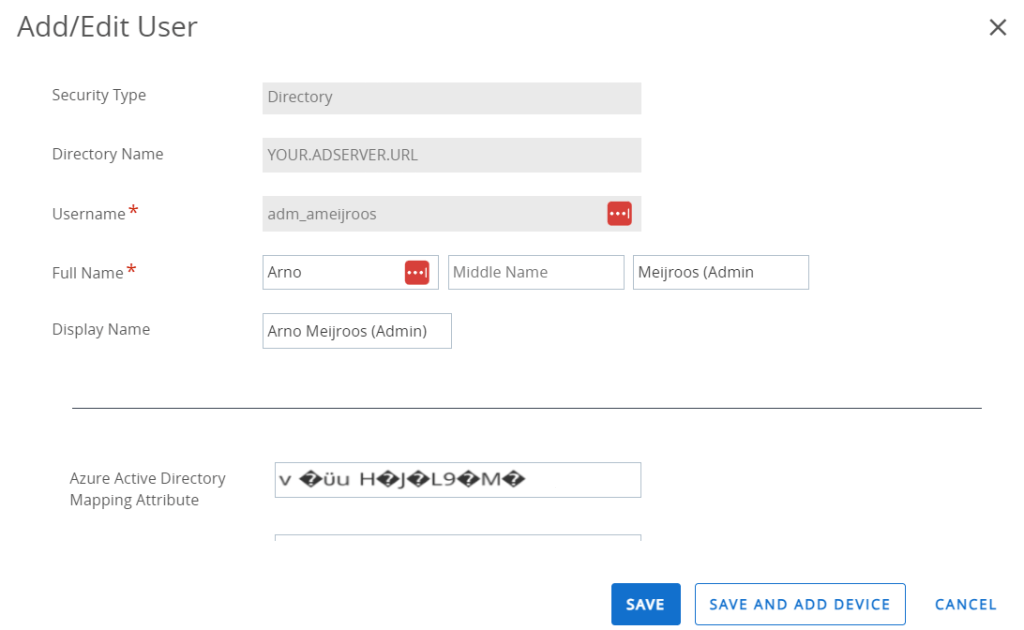
The solution
The solution was quite simple. When we compared the Azure/Entra AD integration settings with another Workspace ONE UEM environment, we noticed the “Mapping Attribute Data Type” was configured to “String” instead of “Binary”.
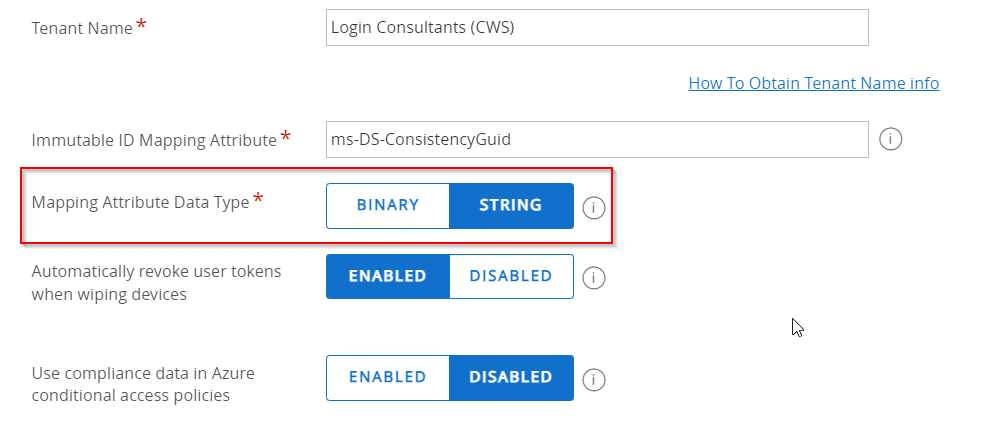
When we changed this to Binary….

….And synced the User Attributes in the User Tab -> Advanced…

….We checked the user account again, and this time we noticed the same GUID as we see in Entra ID!
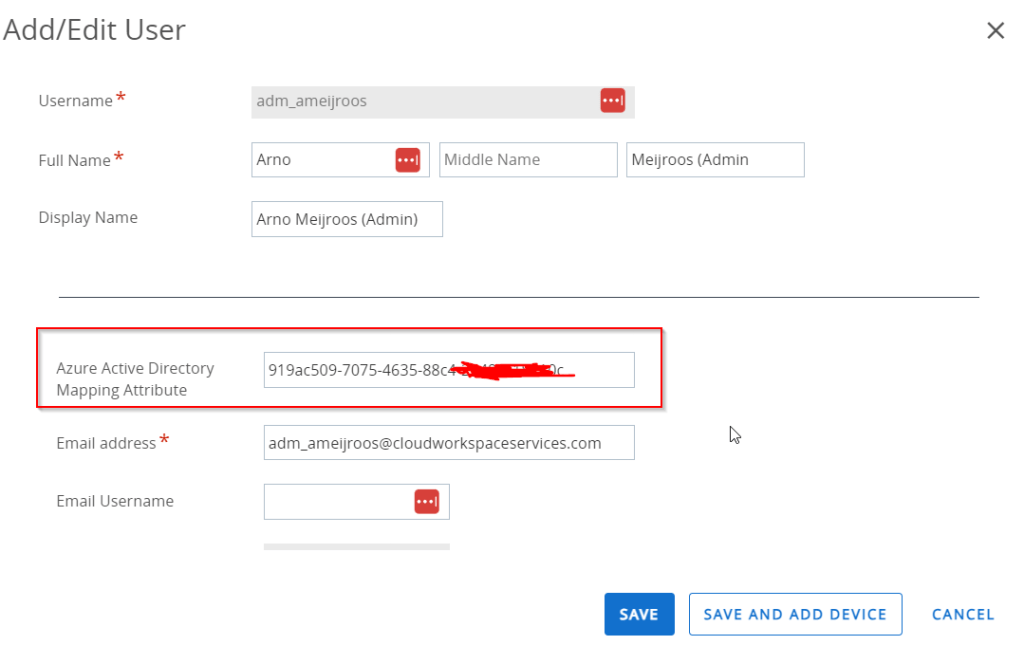
This was the solution!
When we started the Windows AutoPilot enrollment process again we noticed the user could authenticate and the Workspace ONE UEM enrollment process continued successfully!
Please also read the blog post from my colleague Ivan de Mes, who had the same error message, but with a different situation and solution.


 CloudWorkSpace.blog
Leave a Reply